Preview, publish & deploy
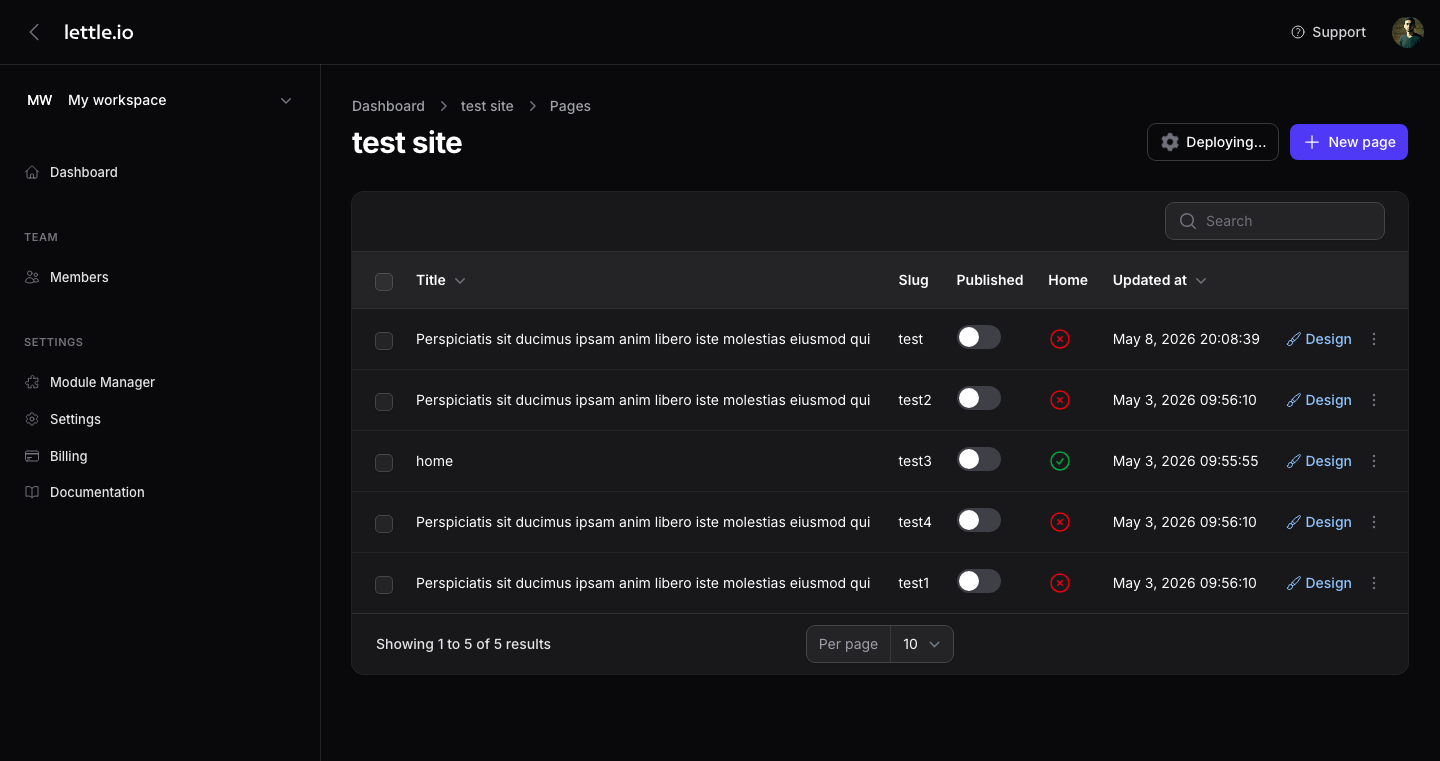
Drafts stay private. Visitors only see pages whose Published toggle is on — and only after you ship a deploy.
-
Preview the saved page
Click Preview on any page row. A new tab opens with the saved draft state — same fonts, scripts, and assets as the live deploy.
-
Iterate and re-preview
Edit, save, refresh the preview tab. The preview always reflects the latest saved version, never the live build.
-
Toggle Published when ready
Flip the Published switch on the page row. Only published pages get bundled into the next deploy.
-
Pick the home page
Use the Home toggle to mark which page serves the website root (/). Only one page per website can be Home.
-
Hit Deploy
The green Deploy button (top-right of the website) compiles published pages and pushes a new Worker version to your Cloudflare account. Most deploys finish in 5–15 seconds.
Tip
If Deploy is disabled, check: (1) Cloudflare credentials saved, (2) at least one published page, (3) no other deploy in flight, (4) you have not hit your monthly deploy quota.