Build a page in the visual editor
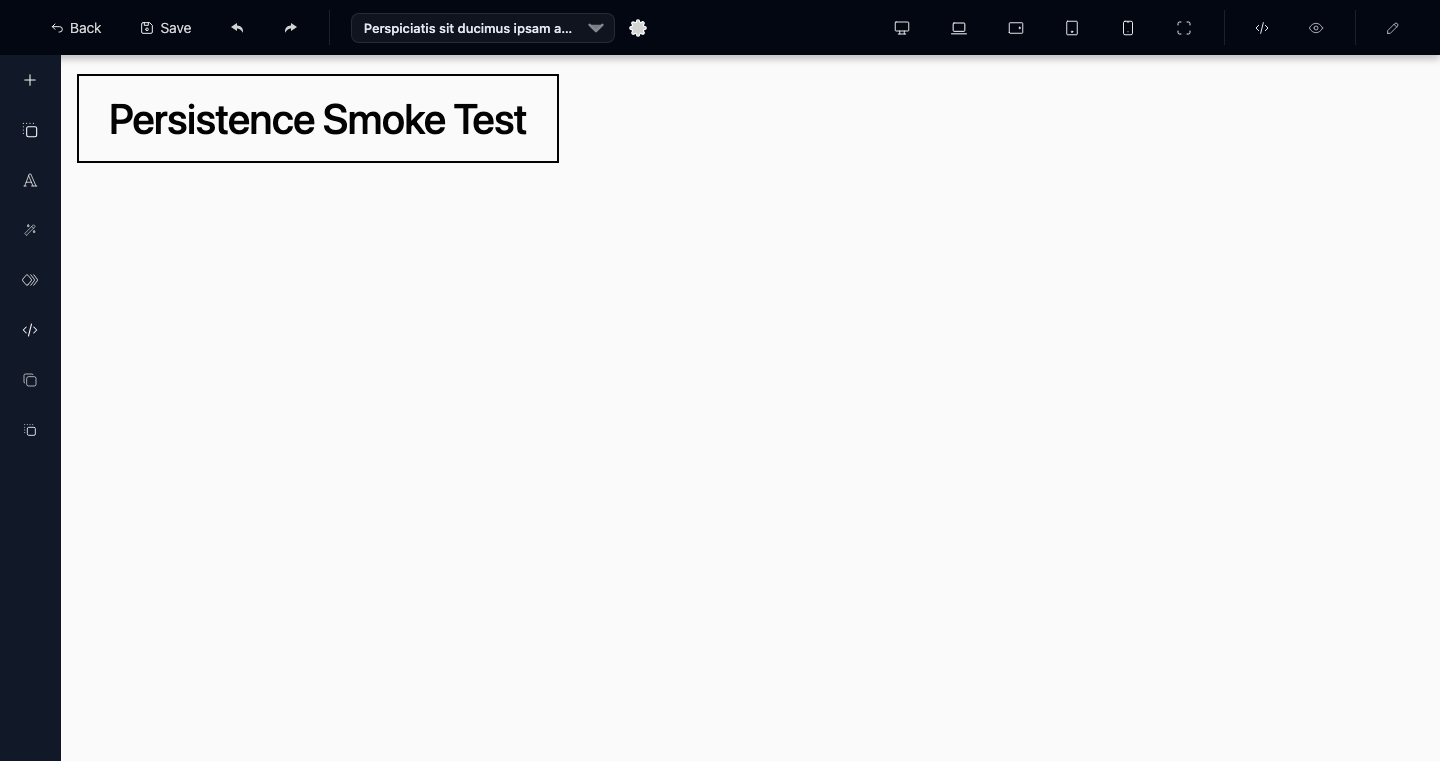
No HTML, no theme files. Drag pre-built sections, click any text to rewrite, and tweak everything inline.
-
Open Pages on a website
From the website dashboard, hit the Pages tab. The first row already contains a Home page draft.
-
Add or open a page
Click "+ New page" to add another, or hit Edit Content on an existing row. The editor opens full-screen.
-
Drop sections from the left toolbar
The + icon on the left toolbar opens a section picker — hero, features, pricing, footers, and more. Drag the one you want into the canvas.
-
Edit any text inline
Click a heading, paragraph, or button to type over it. Use the floating toolbar for formatting and links.
-
Preview at every breakpoint
The device-size icons in the top bar swap the canvas between desktop, laptop, tablet, and phone widths so you can fix layout issues early.
-
Save
Save (top-left, next to Back) writes the draft. Saving never publishes — the live site only changes when you deploy.